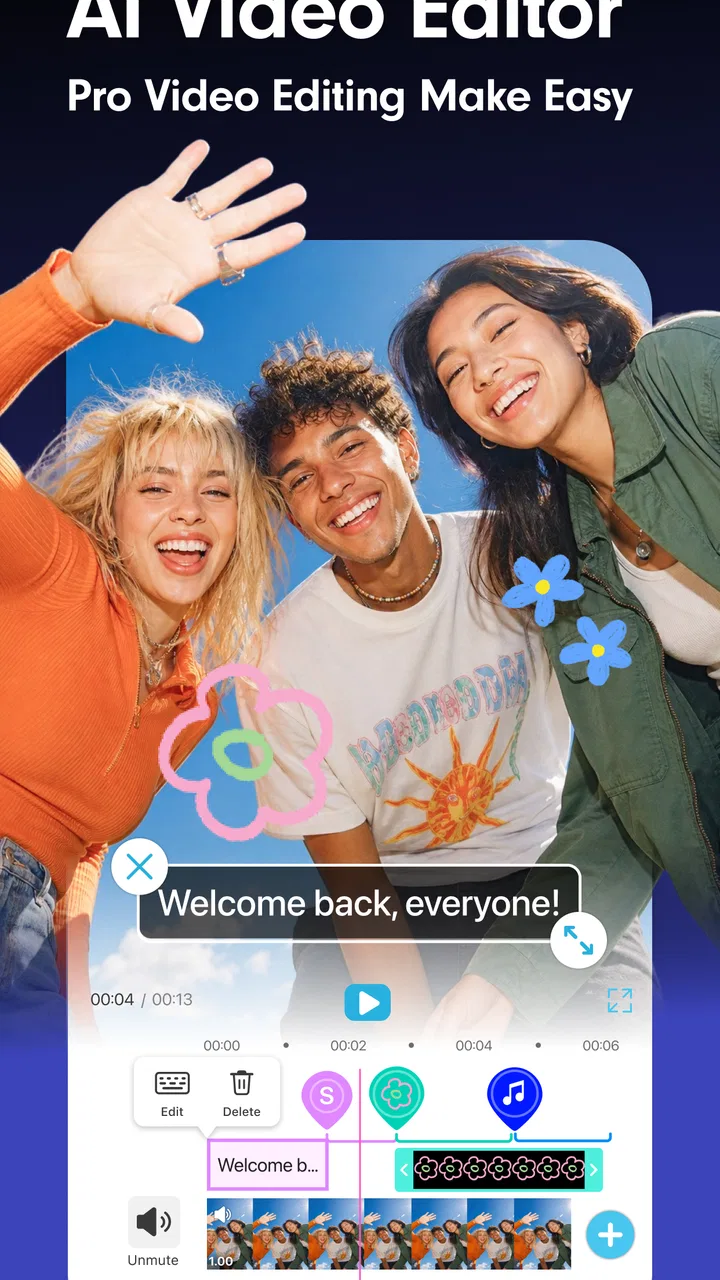
YouCam Video: AI Video Editor
- 3.8
- Rating
- 1.00M
- Installs
- Free
- Price

 Analysis by App-foxy
I spent time with YouCam Video as a mobile video editor, paying particular attention to the point where its creative tools feel useful rather than merely impressive in a store preview. It is made by Perfect Mobile Corp. and sits in the Video Players & Editors category, with a focus on turning ordinary clips and images into more polished, shareable videos. The app is free to install, aimed at Everyone, and its appeal comes from combining familiar editing tasks with AI-assisted creation.
My overall impression is that it is best understood as a quick, appearance-focused editor for people who want results without opening a desktop timeline. It can suit a short social post, a personal montage, a visual greeting, or a simple experiment with image-to-video and text-to-video ideas. It is less convincing as a replacement for a full professional editor, especially if you need precise control over every cut, audio layer, transition, or export decision.
What YouCam Video actually offers in everyday use
The app’s store summary points to three connected ideas: video editing, making videos from images with AI, and generating video from text. That combination gives it a different character from a basic trimming tool. Instead of beginning only with footage already recorded on a phone, I can approach a project from several directions: edit a clip, animate a still image, or start with a written concept.
You May Also Like

 Blood Strike: 2.5 Anniversary
Blood Strike’s Loadouts Turn Every Drop Into a Tactical Gamble
A close look at Blood Strike’s custom loadouts: how fast access to signature weapons reshapes its battle royale rhythm, rewards preparation, and narrows the gap between fights.

 Pandora - Music & Podcasts
Pandora’s Music Is Easy to Start, but Harder to Recover
Pandora’s strength is its low-effort path from a seed to a station. Its weak spot is how much confidence it asks you to place in connection, setup, and quiet recovery.

 8 Ball Pool
 Is Built on Rivalries, Rematches, and Routine
A close look at the rivalries, rematches, shared routines, and unanswered safety questions that turn a quick pool match into a persistent mobile community.

 Samsung Music
’s Quiet Strength Is Playing What You Already Own
Its reach comes less from spectacle than from dependable access to a personal library. That simplicity is both the app’s strongest retention engine and its ceiling.

 AccuWeather: Weather Radar
AccuWeather Review: A Quick, Clear Forecast for Everyday Decisions
For everyday plans, the best forecast is the one you can understand quickly. AccuWeather makes rain timing, radar, and local conditions easy to act on, with a few trade-offs.

 Hill Climb Racing
Why Hill Climb Racing Still Turns Crashes Into One More Run
A tiny car, a bumpy hill and one more upgrade: Hill Climb Racing keeps resurfacing because its simple chaos makes every near-miss feel personal.
More From Our News Desk
View All News


That flexibility is useful when I have a clear result in mind but not much raw material. For example, I might have a single photo from a birthday gathering and want to turn it into a short visual message. A conventional editor would let me place the image on a timeline, add music, and apply movement manually. An AI-assisted workflow can be more convenient when I want the image to feel active without spending time adjusting every motion myself.
The same idea works for a small business owner preparing a quick promotional concept, a student creating a visual presentation, or someone making a themed post for friends. The important distinction is that these are short-form, convenience-driven situations. I would not choose this app first for a long documentary, a carefully paced interview, or a project where exact frame control matters more than speed.
The current version is 1.60.1, and the minimum operating-system requirement is Android 10. That makes compatibility an important practical check before installing, particularly if the app is being considered for an older phone. On a supported device, the experience is designed around mobile convenience rather than the complexity of a workstation editor.
Starting with footage instead of starting from scratch
For a normal clip, I would use the app as a quick finishing tool. The sensible workflow is to select the material, remove portions that do not help the story, adjust the visual presentation, and then decide whether the result needs extra creative treatment. This order matters. AI effects can attract attention, but they do not fix a video that is too long, poorly framed, or unclear.
I found that the most useful mindset is to treat the automated features as a first draft. Let the app suggest or generate a visual direction, then judge whether it still matches the original moment. An effect that looks exciting on a still preview may distract from a person speaking or make a simple family clip feel artificial. Keeping the original version untouched before experimenting is a small habit that saves frustration.
Another practical tip is to create a short test project before committing to a larger batch of clips. This lets me see whether the chosen style fits the footage and whether the overall look remains consistent from one scene to the next. AI-based treatments can be more effective on a single image or a brief sequence than on a long collection of unrelated material.
Using image-to-video and text-to-video thoughtfully
The image-to-video approach is particularly appealing when a photograph has emotional value but lacks movement. I could use it for a travel memory, a portrait, a product image, or a digital invitation. The trade-off is that generated motion is interpretation, not a faithful recording of what happened. If the image contains faces, hands, text, or several objects close together, I would inspect the result carefully before sharing it.
Text-to-video is more useful as an idea generator than as a substitute for planning. A written prompt can help me explore a mood, visual theme, or rough concept when I do not have footage ready. For a creator who is stuck at the blank-page stage, that can be valuable. However, I would still expect to refine the result, because a generated sequence may not communicate a specific message as clearly as footage chosen and edited by hand.
A good workflow is to write a concise prompt with one subject, one setting, and one intended mood rather than packing every possible idea into a single sentence. After generating a draft, I would compare it with the purpose of the video: is it meant to inform, remember, sell, or simply entertain? That question helps prevent the novelty of AI generation from becoming the entire point of the project.
The strongest practical insight is to use AI for the part of the project that slows you down, not automatically for every part. If selecting a visual direction is difficult, generation may help. If the story is already clear, ordinary editing may produce a more natural result with fewer surprises.
Cost, free access, and whether the paid side makes sense
YouCam Video is free to install, which makes trying the basic experience relatively straightforward. The app also includes in-app purchases ranging from $1.99 to $119.99 per item. Those figures describe the possible purchase range, not a promise that every user will need to spend money or that one particular purchase includes every capability.
That distinction matters when judging value. I would begin with the free experience and test the exact workflow I care about: importing a clip, trying an AI creation, making a small edit, and checking whether the result fits my needs. If the free access already handles occasional personal projects, paying may not add enough value for me. If I use the app repeatedly and a paid option removes a limitation that affects my regular work, the decision becomes more reasonable.
I would not buy simply because a generated effect looks attractive in a preview. The better question is whether the purchase improves a repeated workflow. For example, someone producing frequent short videos may value access to a broader creative toolkit more than someone making one birthday montage every few months. The app’s free entry point is therefore useful for testing fit, while the wide purchase range means I would examine the specific item and its terms before confirming anything.
There is also a psychological cost to AI experimentation: it can encourage repeated attempts. Generating several versions may feel harmless, but it can consume time and make a simple project unnecessarily complicated. I recommend deciding on a goal and a stopping point first. If the third variation is not better than the first, more generation is probably not solving the real problem.
Where the app delivers real value
The clearest value is speed. A person who wants a presentable result on a phone can move from an idea to a shareable draft without learning a complex desktop interface. That is especially helpful for casual creators who do not need detailed color work, advanced sound mixing, or a multi-track production environment.
The second value is creative access. Image-to-video and text-to-video tools lower the barrier for someone who has a concept but limited footage. They can also help a user explore several directions before choosing one. Even when the generated result is not the final version, it may reveal a visual approach that would have been difficult to imagine from a blank project.
The third value is convenience for mixed media. A project can begin with a recorded clip, a photograph, or a written idea, which makes the app more adaptable than a tool built only around trimming existing video. That makes it a reasonable companion for social posts, personal projects, and quick visual experiments.
Still, convenience should not be confused with unlimited control. A fast automatic result is valuable when speed is the priority. It is less valuable when the video depends on exact timing, consistent visual identity, or faithful representation of the source image. In those cases, a traditional editor may save time by avoiding corrections later.
The trade-offs I would consider before relying on it
The first trade-off is control versus automation. AI can make a project feel accessible, but the more the app decides on my behalf, the more carefully I need to review the output. A generated movement, transformation, or visual emphasis may not match the meaning of the original material. This is not necessarily a flaw; it is simply the nature of using automated creation rather than manual animation.
The second is consistency. A one-off effect can look appealing, while a series of videos may feel uneven if each generation takes a different visual direction. For a personal post, that may not matter. For a creator trying to maintain a recognizable style, it becomes a serious consideration. I would keep a simple visual rule for each project, such as one mood, one color direction, or one type of motion, and reject results that break it.
The third is editing depth. I see this app as a mobile-first creative tool, not as a complete production suite. If I needed detailed audio correction, precise keyframe work, carefully managed layers, or a highly controlled export pipeline, I would compare it with a more traditional editor before committing to a paid purchase. Those alternatives may feel slower initially, but their control can be more efficient for demanding projects.
A fourth trade-off is the risk of polishing the wrong material. A strong filter or generated animation cannot replace a clear subject and clean source footage. Before applying effects, I would check the basics: is the important person or object visible, is the clip long enough to understand, and does the sequence have a beginning and an end? This simple review prevents the app’s creative tools from distracting me from weak storytelling.
A realistic scenario: making a short family memory
Imagine I have a few phone clips from a family day and one still photograph that everyone likes. I would first choose only the moments that explain the day, rather than importing everything. I might trim the clips into a short sequence, use the photograph as a visual pause, and then test an image-to-video treatment for that still.
If the generated movement makes faces or details look unnatural, I would keep the photograph static or use it briefly between clips. That is an important practical choice: the AI feature is optional, not the purpose of the memory. I would then review the complete sequence from beginning to end, checking whether the effect supports the emotion instead of interrupting it.
For a different version, I could use a text prompt to explore a title card or a visual theme before editing. I would treat that result as inspiration, not as proof that the final family video should be fully generated. The best outcome may combine ordinary footage with one carefully chosen AI element.
This scenario shows where the app makes sense. It helps me experiment quickly, but it still rewards human judgment. The person using it decides what deserves attention, what feels authentic, and when an effect has gone too far.
Who is most likely to get good value
I would recommend trying it to casual creators who want quick videos from a phone, people curious about AI-assisted visual creation, and users who often start with photos rather than finished footage. It can also suit someone who finds conventional editing interfaces intimidating and wants a more approachable way to explore video.
It is a particularly good fit for short personal projects: a visual greeting, a small travel recap, a social-media experiment, or a concept made from a handful of images. The free installation makes it easier to judge the experience personally before considering any purchase.
I would be more cautious for professional editors, filmmakers, and creators whose work depends on repeatable precision. If every cut must land on a specific beat, if a brand look must remain consistent across many videos, or if audio and layers require detailed adjustment, another editor may be a better primary tool. YouCam Video can still be useful for quick ideas, but I would not assume it can replace a deeper workflow.
People who dislike generated or heavily stylized visuals should also approach it selectively. The app’s most distinctive appeal is tied to creative automation, so users seeking only straightforward trimming may find a simpler editor easier to understand and more focused.
My buy-or-skip verdict
My recommendation is to install YouCam Video if you want a convenient mobile editor with AI image-to-video and text-to-video experimentation built into the same general experience. Its free entry point gives casual users a sensible way to test whether the workflow feels natural. I would consider a purchase only after confirming that a specific paid option solves a recurring problem, rather than paying for novelty alone.
The app has reached over one million installs and holds a 3.8 average from around sixteen thousand ratings, which suggests meaningful interest but also leaves room for mixed experiences. I read that as a reason to approach it with realistic expectations: useful for fast, creative projects, but not automatically the best answer for every kind of video work.
It was released on June 30, 2021, and remains an active option for supported Android devices through its current version. The Everyone content rating also makes it broadly approachable for general audiences, though the right choice still depends on the user’s editing goals rather than age suitability alone.
In the end, I see YouCam Video as a practical idea-to-video tool rather than a full professional studio. I would choose it when I want to turn a photo, prompt, or short clip into something more engaging with minimal setup. I would skip it as my main editor when precision, consistency, and deep manual control matter more than speed. For the right user, that balance makes the app worth trying; for everyone else, the free test should make the decision clear before any paid commitment.
FAQs for YouCam Video: AI Video Editor
01What features does YouCam Video: AI Video Editor offer?
YouCam Video: AI Video Editor provides a wide range of features, including AI-powered tools for facial retouching, various filters, and effects to enhance your videos. Users can also access tools for trimming, adding music, and incorporating text. The app is designed to make video editing intuitive and fun, even for beginners.
02Is YouCam Video: AI Video Editor free to use?
YouCam Video: AI Video Editor offers both free and premium versions. The free version includes basic features and tools, while the premium subscription unlocks advanced features, exclusive content, and removes ads. This subscription can be purchased on a monthly or yearly basis depending on user preference.
03How user-friendly is the interface of YouCam Video: AI Video Editor?
The interface of YouCam Video: AI Video Editor is designed to be user-friendly, making it accessible for all levels of users. The layout is intuitive, with clearly labeled tools and options, which simplifies the editing process. New users can quickly learn to navigate the app and utilize its features effectively.
04Does YouCam Video: AI Video Editor support all video formats?
While YouCam Video: AI Video Editor supports a wide array of popular video formats such as MP4 and MOV, it's advisable to check compatibility for less common formats. Users can generally import and export videos seamlessly, ensuring ease of use for creating and sharing edited videos across platforms.
05Can YouCam Video: AI Video Editor be used on both Android and iOS devices?
Yes, YouCam Video: AI Video Editor is available for both Android and iOS platforms. It is optimized for performance on a variety of devices, ensuring a smooth editing experience. The app can be downloaded from the Google Play Store for Android users and the Apple App Store for iOS users.
Pros
- User-friendly interface for quick edits.
- Wide range of filters and effects.
- AI tools enhance video quality.
- Seamless sharing to social media.
- Regular updates with new features.
Cons
- Limited features in free version.
- Requires internet for some functions.
- Might lag on older devices.
- Subscription can be pricey.
- Ad interruptions in free mode.

YouCam Video: AI Video Editor
Gallery